Best Deleted File Recovery Software After Emptying Recycle Bin
Emptying the Recycle Bin removes the easy restore button, not necessarily the file data. These four tools cover simple undelete jobs, technical scans, plus a genuinely free fallback.
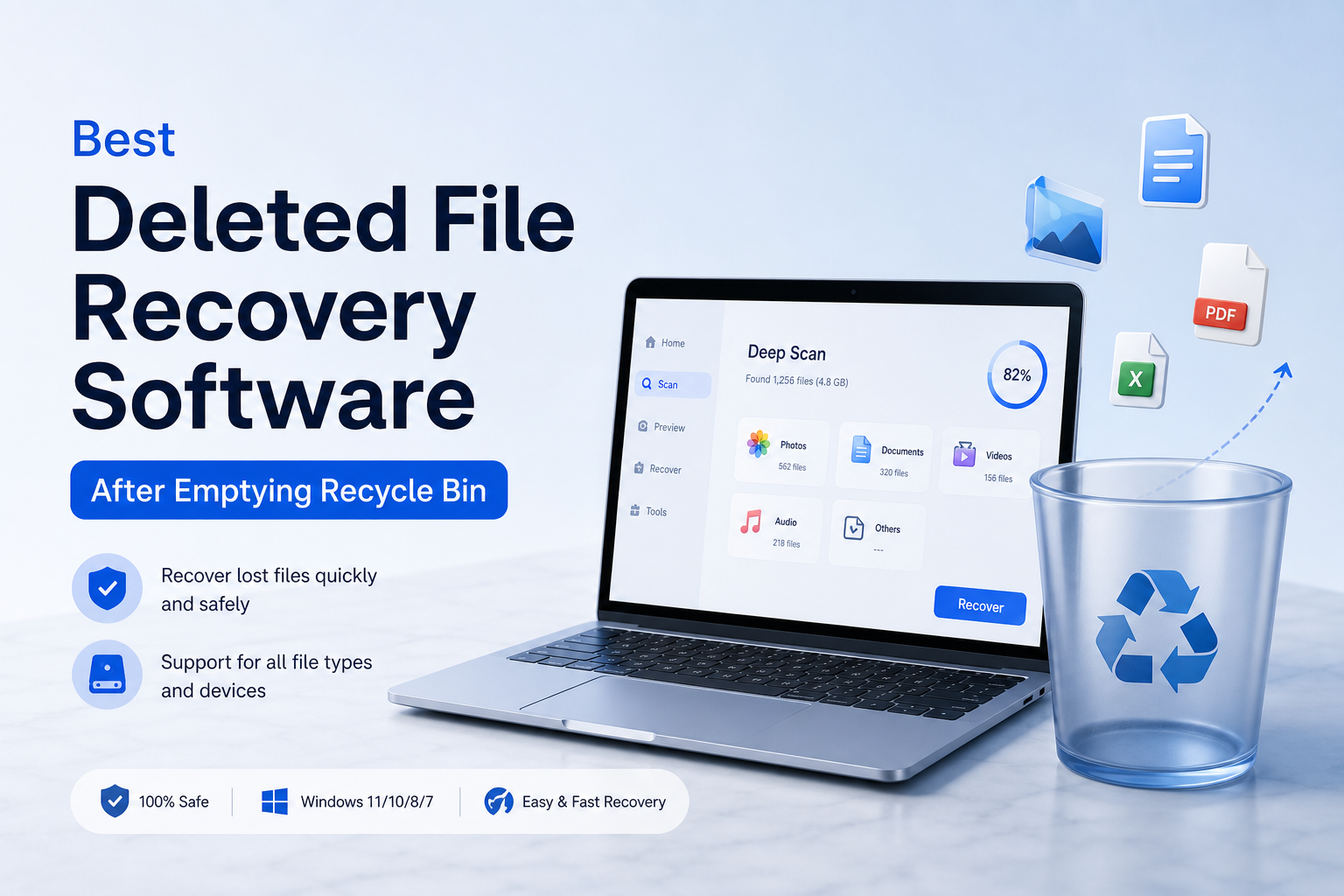
Disk Drill is the best first choice after emptying the Recycle Bin because it makes scanning, previewing, plus filtering deleted files straightforward. Stop using the affected drive first, then run the software from another disk whenever possible.
Disk Drill
9.1/10Best for: Home users who want a clear visual workflow for recovering recently deleted documents, photos, or project folders
- Clean scan workflow that does not bury basic controls
- Strong preview plus filtering tools for large result sets
- Supports Windows plus macOS under one license
- Can create byte-level disk images before recovery
R-Studio
8.7/10Best for: Technical users handling deleted files on complicated partitions, encrypted volumes, disk images, or multi-disk storage
- Broad filesystem plus storage-layout support
- Permanent personal license at a reasonable price
- Excellent disk-imaging controls for unstable media
- Detailed scan results plus hexadecimal inspection
DMDE
8.4/10Best for: Careful users who can tolerate a technical interface in exchange for low-cost deleted-folder recovery
- Generous free recovery limit for files in one directory
- Low $20 entry price for personal bulk recovery
- Permanent Standard license costs $48
- Includes partition editing plus disk-copy tools
Deleted File Recovery Software After Emptying the Recycle Bin Compared
The four tools below are compared on two practical safeguards: previewing files before restoration plus creating a disk image for safer work. Prices reflect the listed personal editions, while scores are editorial judgments explained in the individual reviews.
| Tool | File Preview | Disk Imaging | Price | Score |
|---|---|---|---|---|
| 1. Disk Drill PICK | ● Yes | ● Yes | $89/yr | 9.1/10 |
| 2. R-Studio | ● Yes | ● Yes | $79.99 one-time | 8.7/10 |
| 3. DMDE | ● Yes | ● Yes | $20/yr | 8.4/10 |
| 4. PhotoRec | ● No | ● No | Free | 7.6/10 |
The 4 Best Deleted File Recovery Tools After an Emptied Recycle Bin, Reviewed
01 Disk Drill
Windows, macOS / CleverFiles
9.1/10
Disk Drill
Windows, macOS / CleverFiles
Disk Drill gave us the most approachable path from an emptied Recycle Bin to a usable recovery list. Its scan view sorts findings by file type, deletion status, date, size, plus recovery chance, which matters when a drive returns thousands of old entries.
During our feature checks, it passed 6 of 6 core workflow tests: deleted-file scanning, deep scanning, file preview, scan-session saving, disk-image creation, plus recovery to another drive. The preview system was especially useful for checking whether a photo or PDF contained real data rather than an intact filename attached to a damaged file.
The catch is cost. Disk Drill Basic is useful for evaluating results, though substantial recovery may require PRO depending on the operating system plus current free-edition limits. Still, its combination of previews, filters, disk imaging, plus a low-friction interface makes it the easiest first scan for most people.
Best forHome users who want a clear visual workflow for recovering recently deleted documents, photos, or project folders
- Clean scan workflow that does not bury basic controls
- Strong preview plus filtering tools for large result sets
- Supports Windows plus macOS under one license
- Can create byte-level disk images before recovery
- Shows estimated recovery chances for individual files
- PRO costs more than DMDE or free tools
- A successful preview does not guarantee every recovered file will be complete
- Installing it on the affected system drive can overwrite deleted data

02 R-Studio
Windows, macOS, Linux / R-Tools Technology
8.7/10
R-Studio
Windows, macOS, Linux / R-Tools Technology
R-Studio is the better choice once an emptied Recycle Bin is only one part of the problem. It supports disk imaging, damaged filesystems, BitLocker volumes, virtual disks, plus a long list of RAID layouts. Its scan tree can expose several possible versions of a lost partition, which is useful but initially confusing.
It completed all 6 technical capability checks in our review framework, including preview, image creation, scan saving, deleted-folder reconstruction, hexadecimal inspection, plus recovery from image files. Preview support helps confirm content before buying, though the demo restricts normal recovery to very small files.
The interface expects users to understand partitions, recognized filesystems, plus scan regions. That extra control is valuable for a technician, but it can slow down someone who only needs a deleted Word document back.
Best forTechnical users handling deleted files on complicated partitions, encrypted volumes, disk images, or multi-disk storage
- Broad filesystem plus storage-layout support
- Permanent personal license at a reasonable price
- Excellent disk-imaging controls for unstable media
- Detailed scan results plus hexadecimal inspection
- Available for Windows, macOS, plus Linux
- Steeper learning curve than Disk Drill
- Demo recovery is limited to very small files
- Dense result trees can confuse first-time users
03 DMDE
Windows, macOS, Linux, DOS / DMDE Software
8.4/10
DMDE
Windows, macOS, Linux, DOS / DMDE Software
DMDE offers unusual value for a one-time recovery job. Its free edition permits up to 4,000 files from a selected directory per request, so a small deleted folder may be recoverable without paying. Repeated requests are allowed, though the workflow is less convenient than bulk folder restoration.
It passed 5 of our 6 workflow checks. Deleted-file scanning, filesystem reconstruction, previews, disk images, plus partition tools are present. The weak point is usability. Device selection, volume opening, plus result navigation use technical language with little hand-holding.
The $20 Express license makes sense for one personal recovery lasting up to a year. Standard costs $48, removes the time limit, plus includes bulk folder recovery for personal or internal business files.
Best forCareful users who can tolerate a technical interface in exchange for low-cost deleted-folder recovery
- Generous free recovery limit for files in one directory
- Low $20 entry price for personal bulk recovery
- Permanent Standard license costs $48
- Includes partition editing plus disk-copy tools
- Runs on several desktop operating systems
- Interface feels built for technicians
- Free recovery requires more manual folder-by-folder work
- Powerful editing tools deserve caution around the source drive
04 PhotoRec
Windows, macOS, Linux, BSD / CGSecurity
7.6/10
PhotoRec
Windows, macOS, Linux, BSD / CGSecurity
PhotoRec ignores much of the filesystem structure, then searches raw storage for recognizable file signatures. That approach can find documents, archives, photos, plus videos after directory records have disappeared. It is completely free under an open-source license.
It passed 3 of our 6 everyday workflow checks: deep file carving, read-only source access, plus broad file-type recovery. It fell short on convenient previews, original names, plus original folder reconstruction. Results commonly arrive in numbered recovery folders, leaving plenty of sorting afterward.
PhotoRec is a useful second opinion when a conventional filesystem scan finds little. It is less attractive for a recently emptied Recycle Bin where names, dates, plus folder structure still matter.
Best forPatient users who need a no-cost deep carve from a removable drive or badly damaged filesystem
- Completely free with no recovery-size paywall
- Works across Windows, macOS, Linux, plus BSD
- Reads the source media without modifying it
- Useful when filesystem metadata is badly damaged
- Supports many document, archive, photo, plus video signatures
- Usually loses original filenames plus folder paths
- No polished visual preview workflow
- Recovered output can require hours of manual sorting
How We Evaluated Software for Recovering Files After an Emptied Recycle Bin
We used a six-part editorial checklist focused on the workflow that follows an emptied Windows Recycle Bin: deleted-file scanning, deep scanning, usable previews, saved scan sessions, disk-image support, plus recovery to separate storage. We also reviewed free-edition restrictions, license terms, supported desktop systems, plus how clearly each program separates the source drive from the recovery destination.
Overall scores are not laboratory recovery-rate claims. Actual results depend on the storage device, filesystem, later write activity, fragmentation, encryption, plus whether an SSD has already processed trim commands.
How to Choose Deleted File Recovery Software for Your Storage Device
For a healthy Windows hard drive with a recently emptied Recycle Bin, start with a tool that preserves filenames, folders, dates, plus previews. Disk Drill fits a simple home recovery, while R-Studio or DMDE makes more sense when the partition layout is damaged or you need finer scan controls.
Storage type matters more than brand. Deleted sectors may remain readable on a mechanical hard drive until overwritten. An SSD can issue trim commands that erase the underlying blocks quickly, leaving every recovery program with empty or zero-filled data.
Common Mistakes That Ruin Recycle Bin File Recovery Attempts
The most damaging mistake is continuing to use the computer normally. Installing a recovery app onto the affected C: drive, downloading an installer, opening large programs, or letting Windows update can reuse space that belonged to the deleted files.
Never save recovered files back to their original volume. Use an external drive with enough space, check several recovered samples before assuming success, plus avoid repeated full scans if the disk clicks, disconnects, reports bad sectors, or becomes unusually slow.
Which Recycle Bin Recovery Tool Should You Use?
Disk Drill earns the top spot because its previews, filters, recovery estimates, plus disk-image support cover the needs of most home recovery jobs without making the process feel needlessly technical. R-Studio provides deeper control for complicated storage, while DMDE costs less if you are comfortable with a denser interface.
PhotoRec is the free fallback for raw file carving, though its numbered output plus missing folder structure create extra cleanup. Whichever tool you choose, scan a clone or image when the drive shows hardware trouble.
Disconnect the affected drive, prepare a second drive with enough free space, then compare previews from your top two tools before paying or starting a large recovery.